> For the complete documentation index, see [llms.txt](https://platformdocs.lattica.ai/llms.txt). Markdown versions of documentation pages are available by appending `.md` to page URLs; this page is available as [Markdown](https://platformdocs.lattica.ai/how-to-guides/workload-lifecycle/how-to-modify-workload-settings.md).
# How-To: Modify Workload Settings
Our system's workloads have configurable parameters that control their behavior. You can modify these after deploying your workload.
Each workload has two types of parameters:
There are **parameters you can change** and **parameters you can only view**. The system sets some parameters to default values:
#### **Updatable Parameters**:
| Name | Description | Is this information accessible to end-users or it is restricted to system providers only | Allowed Values |
| -------------------- | --------------------------------------------------------------------------------------------------------------------------------------- | ---------------------------------------------------------------------------------------- | ---------------------------------------------------------------------------- |
| **Name** | Define workload name. It should be unique. | End-user can see the inf | Any non-empty string |
| **Status** | Set the workload as **Active** (default) or **Canceled**. | End-user can see the inf |
ACTIVE, INACTIVE, UPLOADED
|
| **Description** | A customizable free text field for workload details. | The info is restricted to providers | Any string, or none at all |
| **Input Type** | Define the model’s input type (e.g., picture, audio, text, vector). |
The info is restricted to providers (Applies to AI models only)
The info is restricted to providers (Applies to AI models only)
| `TEXT`, `PICTURE`, `AUDIO`, `VECTOR` |
| **Model Visibility** | Choose between **Private** (default, restricted access) or **Public** (accessible via the demo page). |
The info is restricted to providers (Applies to AI models only)
| `PRIVATE`, `PUBLIC` |
| **Auto Restart** | Allowing the model’s worker to restart if it fails automatically. Alternatively, a manual restart can be set. This is set On by default | The info is restricted to providers | `True, False` |
#### **View-Only Parameters** (for reference only - The info is restricted to AI providers ):
* **Model ID**: The unique identifier for the model.
* **Creation Date**: The date the model was created.
* **Model Version**: Current version number of the model.
* **Average Performance**: The average time to process queries on the model.
### Model Status Rules
{% hint style="info" %}
**Note on workload status**
The detailed status lifecycle described below applies to **AI models**.
For other workload types, the status model is simplified to **Active** and **Inactive**.
{% endhint %}
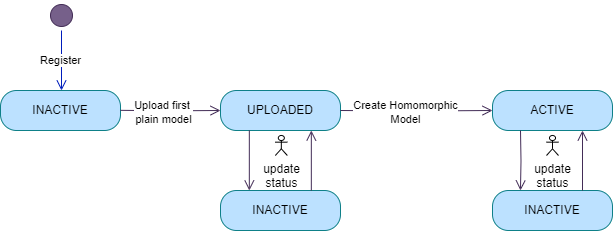
1. Model status can be in one of three valid values: ACTIVE, INACTIVE, or UPLOADED.
2. A model that is registered without a plain model file is created with status INACTIVE.
3. When the first plain file is uploaded, the model status changes to UPLOADED.
4. A model can only have ACTIVE status if there is a valid homomorphic pipeline model defined in our server.
5. Users can cancel the model at any time (changing its status to INACTIVE); however,
6. It is not possible to change the model status when there is a worker active for the model.
{% tabs %}
{% tab title="🌐Console" %}
1. **Navigate to Model Settings**
* From the main dashboard, locate your AI model, click the **three dots** button next to it, and select **"View More"** to access the model parameters page.
2. **Update Parameters**
* Adjust the **updatable parameters** as needed. You can change the **Status**, **Description**, **Input/Output Type**, **Model Visibility**, and **Auto Restart** settings directly in the portal.
3. Check Plain model file status and upload file when needed.
* Missing plain model file: A black upload icon appears with a link if you didn't upload during Model Registration.
* Pending homomorphic pipeline: Model icon shows red when file is uploaded but pipeline isn't built yet.
You cannot upload a new model file until the pipeline is built. Contact support if you need to replace the model.
* Complete setup: File icon turns green when homomorphic pipeline is created. You can upload a new plain model file at this stage.
4. **Save Changes**
* After updating the desired parameters, click **Save**. You’ll receive a **confirmation** if changes are applied successfully or an **error** message if an issue occurs.
{% endtab %}
{% tab title="🧊Python SDK" %}
```python
# Update Model
import LatticaManagement
# Authenticate
lattica = LatticaManagement("your_license_from_lattica_console")
# Register a new model...
model_id = lattica.create_model("model_name")
# update model status and other properties
lattica.update_model(model_id,
description="Best model ever",
status="INACTIVE",
input_type="PICTURE",
output_type="TEXT",
model_visibility="PUBLIC"
)
```
{% endtab %}
{% endtabs %}